
Introduction
I still remember very well the first time I downloaded and ran Emacs back in 2008. I'm certain I said something along the lines of, "Meh, this definitely isn't my type of text editor." Out of the box, Emacs is plain and confusing for newcomers; it also has a steep learning curve. However, there is a good reason so many developers stick with it and treat it almost as a way of life, there simply is no other tool that offers what Emacs provides. This guide's purpose is to show you how you can survive in Emacs and how you can complete your daily tasks within Emacs and keep improving over time.
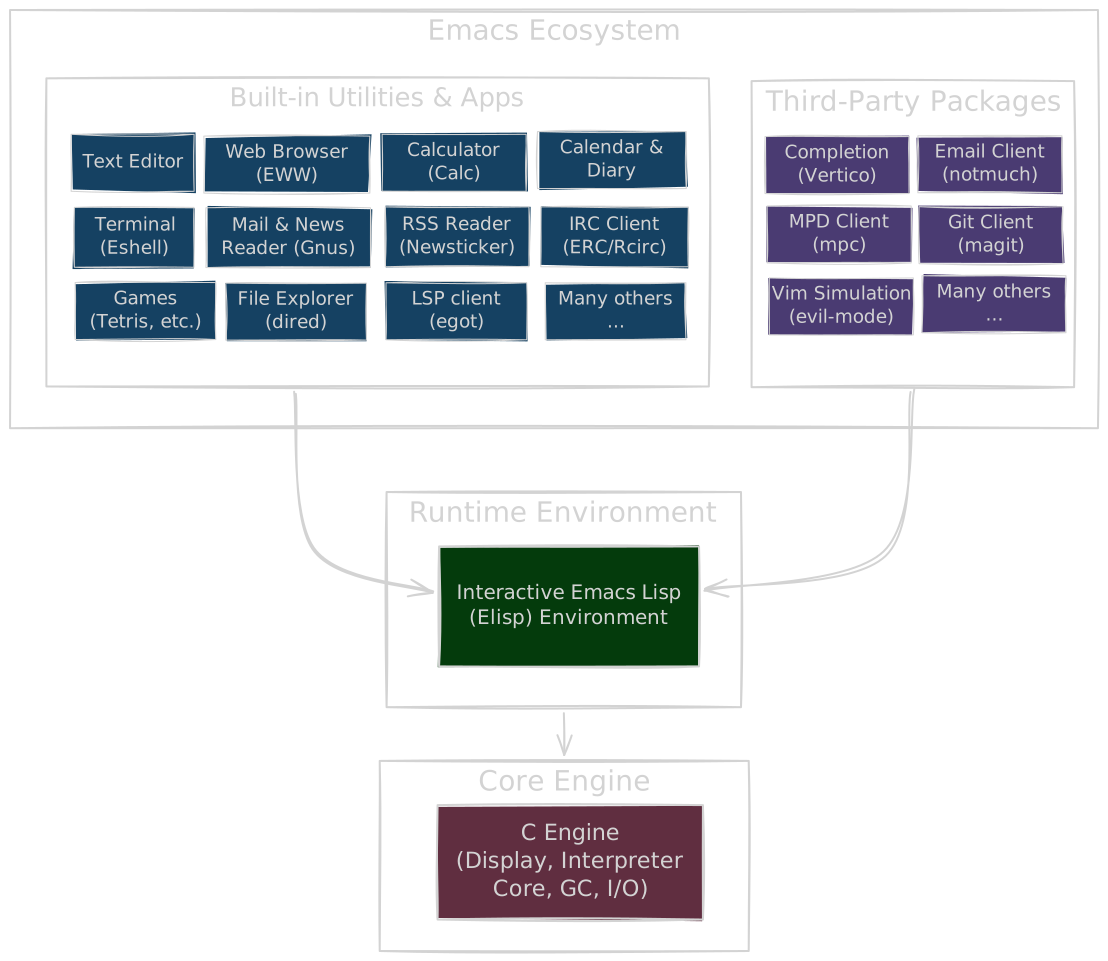
I would like to first try to explain what Emacs is because many people confuse it with a text editor. Actually calling Emacs simply a text editor is like calling Windows a text editor just because it happens to ship with Notepad. Emacs consists of a C engine and an interactive Emacs Lisp (Elisp) environment running on top of it. On top of this runtime environment, an entire set of applications is built: a text editor, web browser, calculator, calendar, mail and news reader, RSS reader, IRC client, Tetris game, and countless other utilities. While all of these tools come built into Emacs out of the box, the community has also created thousands of third-party packages using that very same environment.
Emacs is best described as an extensible, self-documenting, and primarily keyboard-driven computing environment:
Extensible: Almost all built-in tools, workflows, and core components can be customized or entirely replaced.Self-documenting: All the help and reference material you need is available insideEmacs. You can explore and learn Emacs using its own introspection tools.Keyboard-driven: While mouse support is available, Emacs is designed to be driven entirely by the keyboard. Investing in a good ergonomic split keyboard and learning touch typing is very rewarding.
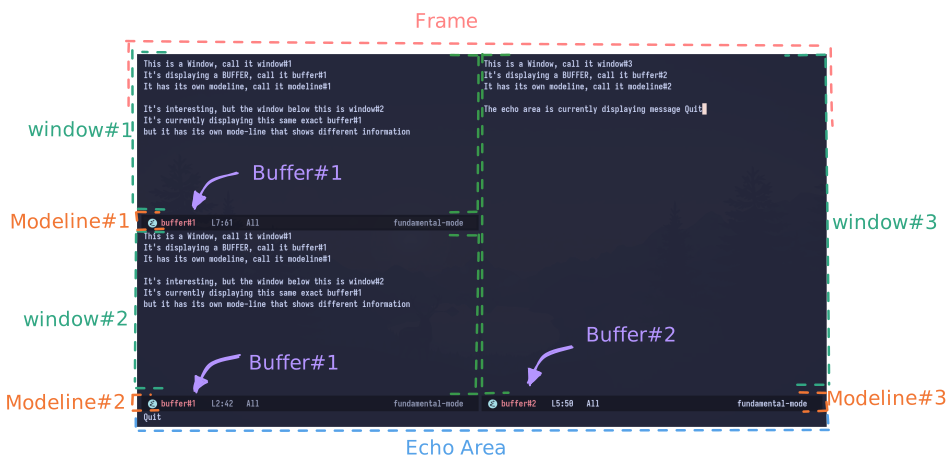
This section might seem boring at first, but understanding Emacs terminology is essential. It clarifies how Emacs is structured and makes reading documentations and tutorials far easier.
Emacs was developed in the 1970s that's almost a decade before modern desktops like Windows or Mac show up. Emacs actually invented the GUI terminology before modern operating systems standardize it, this makes an Emacs window different from what you expect a window to be. This guide maps Emacs terms to their counterparts in VSCode.
Note: These comparisons help you understand the terminology, but you should adopt native Emacs terminology by calling components by their proper names which will make manuals, commands, and community tutorials much easier to follow and understand.
Frame
An Emacs Frame is a VSCode window. Just as you can open multiple VSCode windows (instances), you can spawn multiple Emacs Frames.
Window
An Emacs Window is a VSCode pane. Just as you can split your VSCode editor into vertical or horizontal panes, you can split an Emacs Frame into multiple Windows.
Buffer
A Buffer is an in-memory object containing text or binary data (like images). You can think of it as an open file/tab inside VSCode. Emacs buffers may be one of the hardest concepts to grasp, they could be:
- File Associated: Associated with persistent files on disk, such as source code files and notes.
- Process Buffers: Driven by system processes, such as terminal emulators and compilation outputs.
- Internal Buffers: Utilities maintained by Emacs, typically named with surrounding asterisks (such as
*scratch*and*Messages*).
Mode Line
A Mode Line is a VSCode status bar. It reports diagnostics such as modification state, current line number, and file encoding. Unlike VSCode's single global bar, every active window in Emacs has its own dedicated Mode Line.
Echo Area
The Echo Area is an output display at the bottom of the Emacs Frame. It displays short status updates, error alerts, and function output. I can't find a similar concept in VSCode; you can think of it as the last line printed in the debug panel output.
Minibuffer
The Minibuffer is an interactive prompt at the bottom of the frame; it shares the same space with the Echo Area and it's activated/expanded when Emacs needs user input. It's similar to VSCode's Command Palette used to prompt for commands, file names, or search queries.
Major Mode
A Major Mode defines certain behaviors for each Buffer type like syntax highlighting, indentation rules, and it can also add its own keybindings. It's similar to VSCode's set language command, but it's actually more powerful. It's worth noting that every buffer in Emacs has exactly one Major Mode active at a time.
Minor Mode
A Minor Mode is an optional feature that can be toggled on Emacs buffers. Examples include: showing line numbers, spell checking, and word wrapping.
Recap
- Emacs can have many
framesopen. - Each
framehas 1 or morewindows, 1echo area, and 1minibuffer. - Each
windowhas 1bufferand 1mode line. - Each
bufferhas data/content, one activemajor mode, and as many activeminor modes.
Discovery and Completion
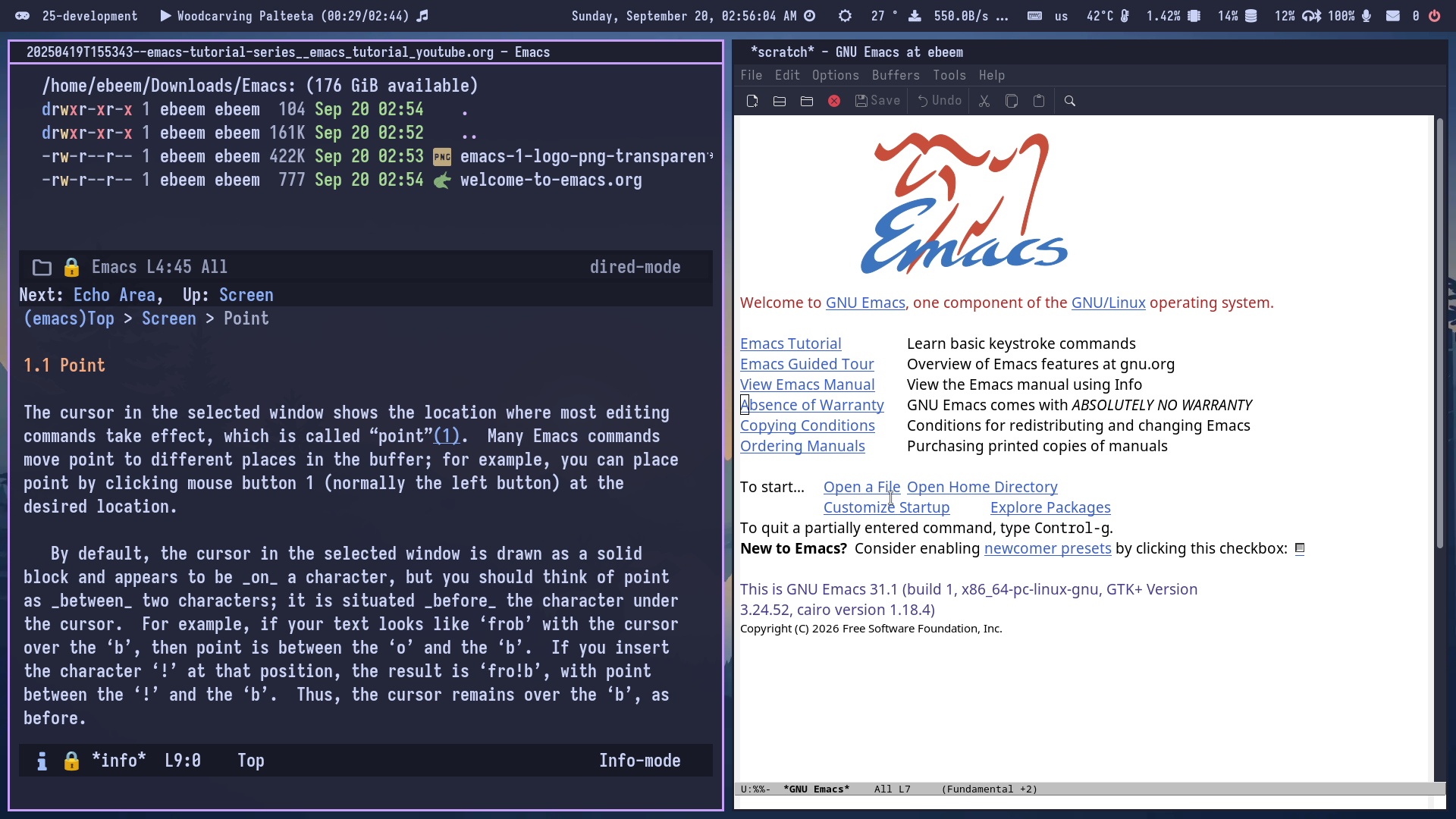
I prepared a little snippet that will help you get started. For now, do not worry about the ELisp syntax or what every line does. We will come back to this piece of code and explain it in detail in future articles. The goal right now is simply to give you a polished and modern environment with better and much easier to start with defaults.
Locating Your Configuration File
Emacs stores its user configuration in a file called init.el. If this file does not exist yet, you can create it in the following locations depending on your operating system:
- Linux & macOS:
~/.emacs.d/init.elor~/.config/emacs/init.el - Windows:
%APPDATA%/.emacs.d/init.el(typicallyC:/Users/<Username>/AppData/Roaming/.emacs.d/init.el)
Open or create init.el, replace its contents with the snippet below, and restart Emacs. If the file was loaded successfully, you will notice your Emacs has become dark-themed.
;;; init.el --- Minimal configuration for Emacs 31 -*- lexical-binding: t; -*-

;;; package management
(require 'package)
(add-to-list 'package-archives '("melpa" . "https://melpa.org/packages/") t)
(package-initialize)

(require 'use-package)
(setq undo-no-redo t)
(global-display-line-numbers-mode 1)

(set-face-attribute 'default nil
                    ;:family "Iosevka" ;; change this font to your preferred one
                    :height 180       ;; you can increase/decrease font size here
                    :weight 'bold)

;;; theme
(use-package modus-themes
  :ensure t
  :config
  (load-theme 'modus-vivendi-tinted :no-confirm))

;;; which-key (built-in starting in emacs 30)
(use-package which-key
  :ensure nil
  :init
  (which-key-mode 1))

;; vertico: minimal vertical minibuffer completion ui
(use-package vertico
  :ensure t
  :init
  (vertico-mode 1))

;; orderless: flexible space-separated fuzzy/pattern matching
(use-package orderless
  :ensure t
  :custom
  (completion-styles '(orderless basic))
  (completion-category-defaults nil)
  (completion-category-overrides '((file (styles partial-completion)))))

;; marginalia: rich contextual annotations in the minibuffer margin
(use-package marginalia
  :ensure t
  :init
  (marginalia-mode 1))

;;; sensible ui defaults
(setq inhibit-startup-screen t)
(menu-bar-mode -1)
(tool-bar-mode -1)
(scroll-bar-mode -1)

;;; init.el ends here
What's Next?
Understanding the terminology highlighted in this article like: frames, windows, buffers, and major and minor modes provides you with the needed foundation for all the upcoming articles.
In Part 2: User Input & Text Navigation, we will explore the Emacs input system, keybindings, and navigation keys.